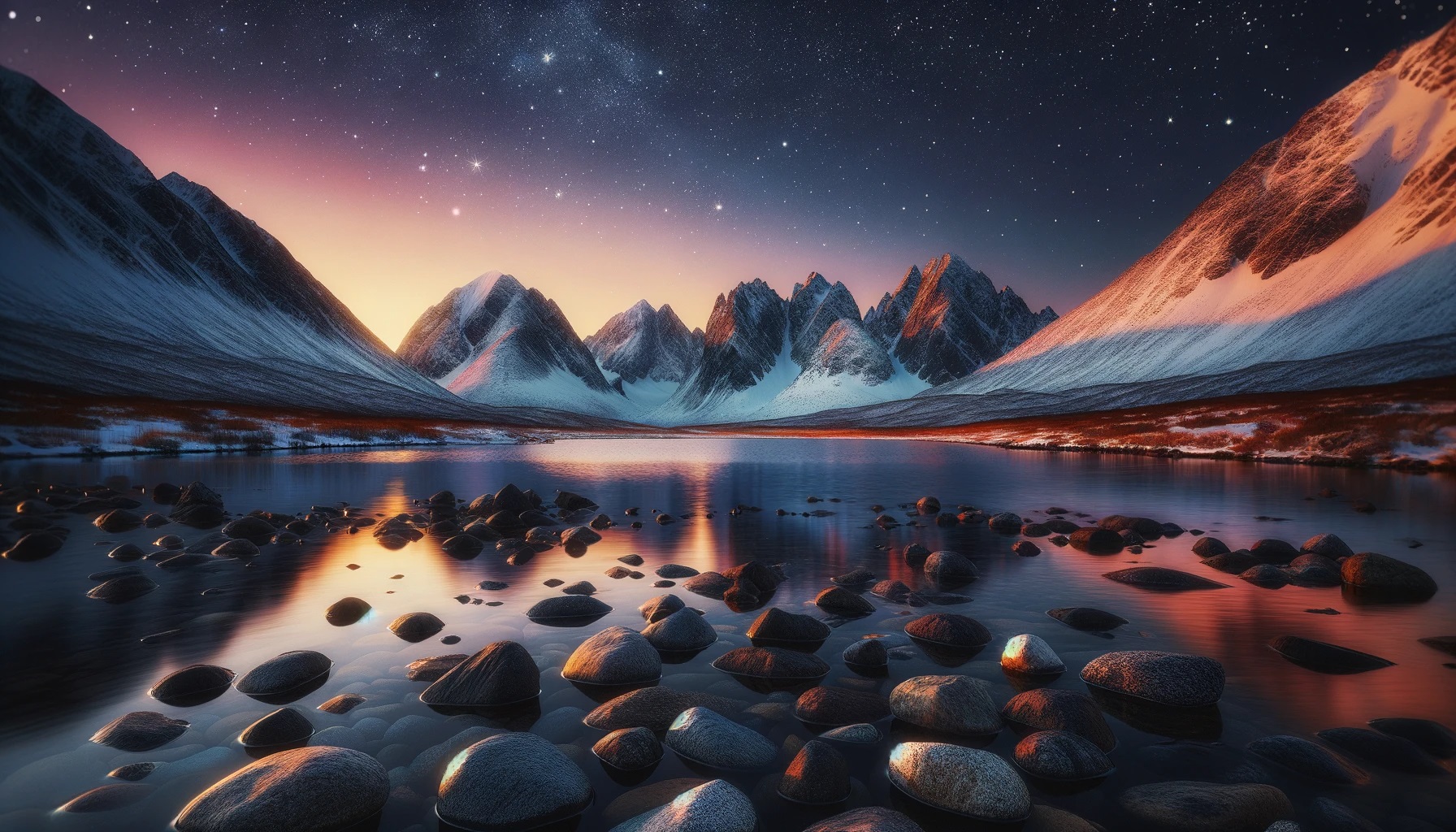
If you are looking for the DALL·E aspect ratio, the short answer is simple: DALL·E 3 supported three fixed image sizes. The square format was 1024 × 1024 pixels, the landscape format was 1792 × 1024 pixels, and the portrait format was 1024 × 1792 pixels.
There is one important update, however. DALL·E 3 is no longer OpenAI’s current image model. OpenAI has deprecated and removed it from the API and recommends GPT Image 2 for new image generation and editing. GPT Image 2 is much more flexible: instead of choosing from only three canvases, you can use many familiar ratios, including 4:5, 3:2, 16:9, 9:16, 2:1 and 3:1, as long as the pixel dimensions follow the model’s rules.
I first wrote this article in January 2024 after experimenting with DALL·E 3. I asked it to create winter landscapes, changed the canvas from horizontal to vertical, and watched the same basic idea turn into a very different composition. In one early attempt I even asked for a single moon, because the previous version had quietly placed three of them in the sky.
That small mistake stayed with me. An image model can understand the general idea while still making unexpected decisions inside the frame. The aspect ratio controls the shape of the canvas, but it does not control every part of the image.
DALL·E 3 aspect ratios: the quick reference
DALL·E 3 offered one square, one landscape and one portrait size.
| Orientation | DALL·E 3 size | Exact aspect ratio | Decimal ratio |
|---|---|---|---|
| Square | 1024 × 1024 px | 1:1 | 1.00 |
| Landscape | 1792 × 1024 px | 7:4 | 1.75 |
| Portrait | 1024 × 1792 px | 4:7 | 0.571 |
The landscape and portrait formats are often described as 16:9 and 9:16, but that is not quite correct. DALL·E 3’s wide canvas was 7:4, while its tall canvas was 4:7.
The difference is small:
- 7:4 equals 1.75.
- 16:9 equals approximately 1.778.
- 4:7 equals approximately 0.571.
- 9:16 equals 0.5625.
On a screen, these shapes look very similar. For exact layouts, however, the difference matters. A DALL·E 3 landscape could be cropped from 1792 × 1024 to 1792 × 1008 to make it exactly 16:9. That removes only 16 pixels of height in total. The portrait version could likewise be cropped from 1024 × 1792 to 1008 × 1792 for an exact 9:16 frame.
DALL·E 2 sizes
DALL·E 2 was more limited. It produced square images only, at 256 × 256, 512 × 512 or 1024 × 1024 pixels. If an old guide lists those three dimensions, it is describing DALL·E 2 rather than DALL·E 3.
Aspect ratio, resolution and orientation are different things
These terms are often used as if they mean the same thing, but they describe different parts of an image.
Aspect ratio describes the shape
An aspect ratio compares width with height. A 4:5 image is four units wide for every five units high. It remains 4:5 whether the file measures 800 × 1000, 1080 × 1350 or 1280 × 1600 pixels.
The basic calculation is width divided by height. For example, 1792 divided by 1024 equals 1.75, so the ratio reduces to 7:4.
Resolution describes the number of pixels
Resolution is the actual width and height of the file. A 1280 × 720 image and a 3840 × 2160 image are both 16:9, but the second file contains nine times as many pixels.
A higher resolution can preserve more detail, but it does not automatically improve the composition. A badly framed 4K image is still badly framed.
Orientation describes the direction
Landscape means wider than tall. Portrait means taller than wide. Square means the width and height are equal.
“Landscape” is not a precise aspect ratio. A landscape image might be 4:3, 3:2, 16:9, 7:4, 2:1 or another wide shape. If the final destination matters, I choose the ratio rather than relying only on the word “landscape”.
Composition describes what happens inside the frame
The canvas can have the correct dimensions while the subject is still in the wrong place. A person may be too close to the edge, a mountain may disappear behind a headline, or the most important detail may sit beneath the controls of a Story or Reel.
Aspect ratio sets the boundary. Composition decides how the image uses that space.
What changed with GPT Image 2
The official DALL·E 3 model page now describes DALL·E 3 as deprecated and removed from the API. For current work, OpenAI recommends GPT Image 2, which supports flexible dimensions and image editing.
This is the most important change since the original version of this article. DALL·E 3 forced every landscape idea into 1792 × 1024 and every portrait idea into 1024 × 1792. GPT Image 2 lets the output match the intended use much more closely.
According to OpenAI’s current GPT Image prompting guide, a custom size must meet these conditions:
- Both the width and height must be multiples of 16 pixels.
- The long edge cannot be more than three times the short edge.
- The image must contain at least 655,360 pixels and no more than 8,294,400 pixels.
- The longest edge must remain below the documented 3840-pixel boundary.
- Images above the 2560 × 1440 reliability boundary should be treated as experimental.
That sounds technical, but most people do not need to calculate a new size every time. A small set of dependable dimensions covers the common formats.
| Format | Aspect ratio | Practical GPT Image 2 size | Typical use |
|---|---|---|---|
| Square | 1:1 | 1024 × 1024 | General images, square posts, avatars |
| Landscape photo | 3:2 | 1536 × 1024 | Articles, editorial photography, web images |
| Portrait photo | 2:3 | 1024 × 1536 | Portraits, posters, vertical editorial images |
| Social portrait | 4:5 | 1280 × 1600 | Instagram feed posts, product portraits |
| Widescreen | 16:9 | 2048 × 1152 | Video thumbnails, presentations, web headers |
| Vertical screen | 9:16 | 1152 × 2048 | Stories, Reels, phone wallpapers |
| Wide banner | 2:1 | 2048 × 1024 | Website heroes and article headers |
| Ultra-wide banner | 3:1 | 2400 × 800 | Panoramic banners with simple compositions |
These are generation sizes, not universal publishing requirements. A website, social network or phone may need a smaller final file. I prefer to generate at a valid size with the correct ratio and then export a clean version for its destination.
Which aspect ratio should you use?
The best ratio depends on where the image will appear and how the viewer will see it. I decide that before writing the prompt, because the destination affects the composition as much as the dimensions.
Use 1:1 for a balanced, compact image
A square works well when there is one clear subject and no strong horizontal or vertical movement. It is useful for avatars, album artwork, product images, simple illustrations and square social posts.
The limitation is space. A square becomes crowded quickly when I try to include several people, a detailed environment and room for text. In that situation, a wider or taller frame usually gives the scene more room to breathe.
Use 3:2 for a photographic landscape
The 3:2 ratio feels familiar because it is common in photography. It works naturally for landscapes, street scenes, travel images and editorial photographs. GPT Image 2’s standard 1536 × 1024 landscape size is exactly 3:2.
For a general article image, 3:2 is often a safer choice than 16:9. It is wide enough to feel photographic but still has enough height for foreground detail and mobile crops.
Use 4:5 for a portrait feed post
The 4:5 format is useful when a subject needs more vertical presence without filling an entire phone screen. It gives a person, building, product or still life enough height while remaining comfortable in a feed.
A valid GPT Image 2 size is 1280 × 1600. That can be resized directly to 1080 × 1350 because both files have the same 4:5 ratio. No crop is required.
Use 16:9 for screens and video
The 16:9 ratio is the natural choice for video thumbnails, presentation slides, television screens and many web headers. A useful generation size is 2048 × 1152.
Wide images need a clear visual hierarchy. If I want to add a headline later, I keep the main subject on one side and leave the other side quieter. Without that instruction, the model may fill the entire width with detail and leave no usable text space.
Use 9:16 for Stories, Reels and phone wallpapers
A 9:16 image fills a vertical phone screen. A valid GPT Image 2 size is 1152 × 2048, which can be resized to 1080 × 1920 without changing the ratio.
The top and bottom of a phone image are rarely empty in real use. The clock, username, captions, buttons and navigation controls can cover important details. I keep faces, hands, logos and other essential elements away from those areas.
Use 2:1 or 3:1 only for genuinely wide layouts
A 2:1 ratio works well for a website hero, especially when the design needs space for a title beside the subject. A 3:1 frame is much more demanding. It has little vertical room, so small objects, close faces and busy scenes can feel squeezed.
For a very wide banner, I use one main focal point and broad areas of low detail. I also accept that a separate mobile crop may still be necessary, because one panoramic composition rarely survives every responsive screen width.
Useful generation and publishing sizes
The dimensions used to generate an image do not have to match the final upload size. What matters is keeping the same aspect ratio until the last export.
| Destination | Common final size | GPT Image 2 generation size | What happens before publishing |
|---|---|---|---|
| Instagram square post | 1080 × 1080 | 1536 × 1536 | Resize down |
| Instagram portrait post | 1080 × 1350 | 1280 × 1600 | Resize down |
| Instagram Story or Reel | 1080 × 1920 | 1152 × 2048 | Resize and check interface areas |
| YouTube thumbnail | 1280 × 720 | 2048 × 1152 | Resize, then add final typography if needed |
| Open Graph preview | 1200 × 630 | 1920 × 1008 | Resize down |
| Website hero | Responsive | 2048 × 1024 or 2048 × 1152 | Export the crops used by the layout |
The Open Graph example is a useful illustration. The common 1200 × 630 file has a 40:21 ratio, but 630 is not divisible by 16. A 1920 × 1008 canvas keeps the exact same ratio while satisfying GPT Image 2’s multiple-of-16 rule. It can then be resized directly to 1200 × 630.
I never stretch an image to force it into a new shape. Stretching turns circles into ovals and subtly distorts faces, cars and buildings. Cropping removes part of the frame; resizing changes the number of pixels; stretching changes the geometry.
What my original DALL·E 3 images taught me
The three images in this article come from my original DALL·E 3 experiments. They are AI-generated images, not photographs I took. I have kept them because they show the old model’s fixed landscape and portrait canvases more clearly than a diagram would.
A snowy lake in DALL·E 3’s landscape format
For the lake scene, I asked for mountains in the background, rocks in shallow water, winter, evening light, stars and a single moon. The wide frame gave the model room to spread the peaks across the horizon and use the rocks as a path into the image.
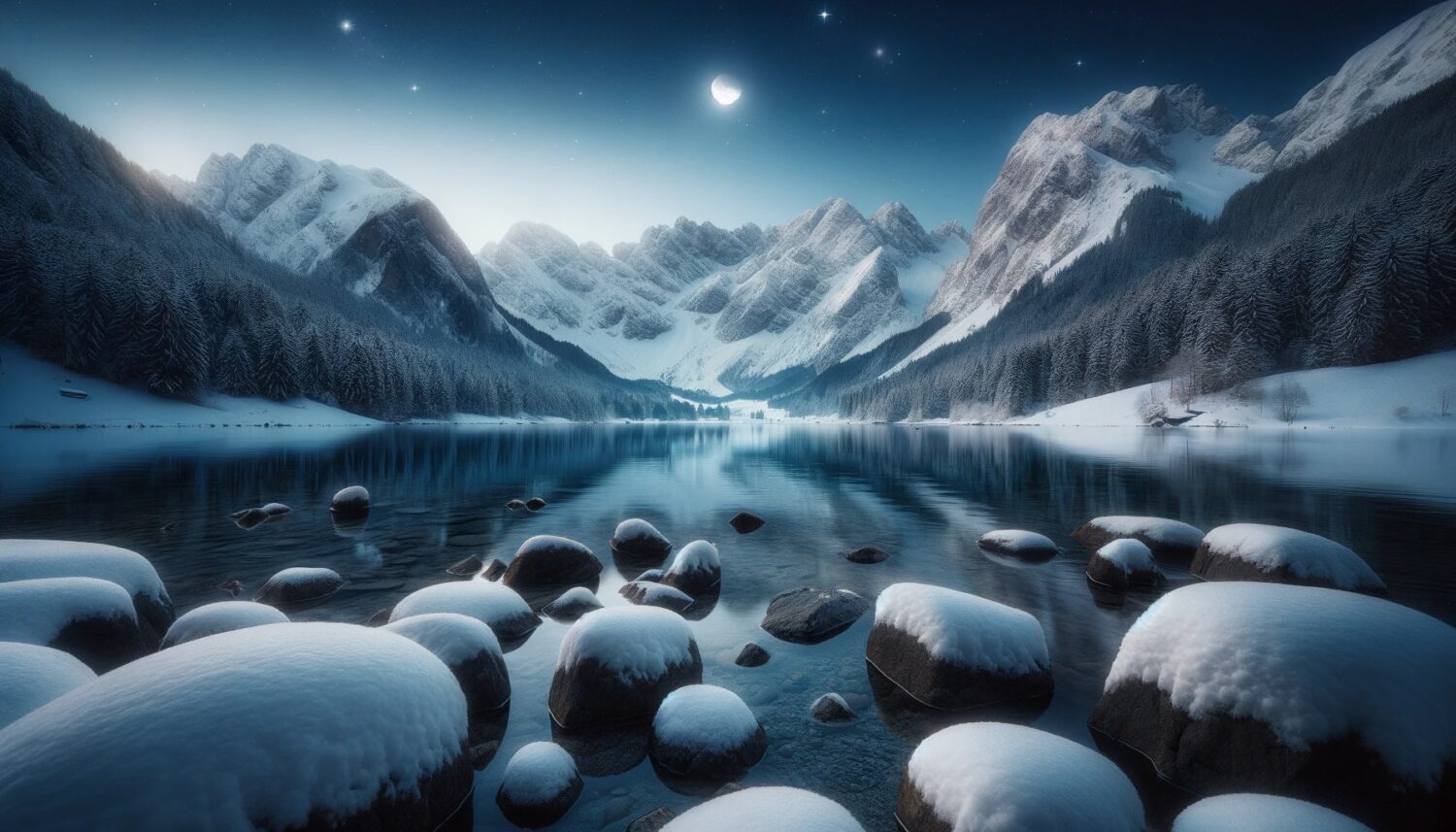
The image works because the scene naturally moves from left to right. The mountain range fills the distance, while the stones create depth in the foreground. A square crop would remove much of that breathing room.
My original prompt described the ingredients but left many photographic decisions open. It did not define the camera height, focal length, exact position of the moon or amount of empty sky. That is why two generations from the same prompt can feel related without looking like the same photograph.
A snowy road in DALL·E 3’s portrait format
The portrait experiment was busier. I asked for a snowy road leading toward an illuminated alpine village, with a church, a red sports car and Bitcoin advertising beside the road.

The strongest part of the result is the vertical sequence. The car sits near the bottom, the road leads toward the village, the church rises through the middle, and the moon and snowfall occupy the upper part of the frame. The tall canvas turns the road into a strong leading line.
It also shows what happens when a prompt asks for too many competing elements. The car, road, village, church, mountains, snowfall, moon and advertising all want attention. The aspect ratio gives those elements space, but it does not decide which one should dominate.
How I describe composition in an aspect-ratio prompt
The output dimensions establish the canvas. The prompt should explain how the scene uses it.
Instead of writing only “make it horizontal”, I include four practical details:
- The intended use, such as a website hero, feed post or phone wallpaper.
- The position and size of the main subject.
- The part of the frame that should remain quiet or empty.
- The important details that must stay away from the edges.
For a wide image, a simple prompt might say: “Create a 16:9 editorial landscape with the main subject in the left third and calm negative space on the right for a headline.”
For a portrait post, I might say: “Create a 4:5 portrait with the person fully visible, natural space above the head, and all important details inside the central area.”
For a phone wallpaper, I would be more explicit: “Create a 9:16 image with a simple upper area for the clock and no essential detail near the bottom controls.”
These are ordinary composition instructions, not guarantees. A model can return the correct canvas and still shift the subject, add an object or ignore part of the safe area. I always inspect the finished image at its real display size.
Ratio in the prompt versus size in the API
In a conversation, describing the ratio helps the model understand the intended layout. In the API, the size parameter controls the actual output dimensions.
For example, a 16:9 GPT Image 2 request uses a size of 2048 × 1152, while a 4:5 request uses 1280 × 1600.
If I mention 16:9 only in the prompt but leave the size on automatic, I may get a composition that feels wide without receiving the exact pixel dimensions I expected. When the final file size matters, I set it explicitly and verify the downloaded image.
How aspect ratio changes the generated image
Changing the ratio is not the same as cropping one finished picture. When I generate the same idea at another size, the model usually rebuilds the scene.
A square version may bring the subject closer to the centre. A landscape version may add background on both sides. A portrait version may add more sky, foreground or a full-body view. Lighting, camera angle, object count and small details can change at the same time.
That is why square, landscape and portrait generations should not be expected to match pixel for pixel. They are new interpretations of the prompt.
If I need the same character, product or interior in several formats, editing an approved reference image is usually more consistent than starting again from text alone. Even then, I check faces, hands, packaging, repeated patterns, signs and small typography at full size.
Cropping, resizing and extending an image
These three operations solve different problems.
Crop when the frame has spare space
Cropping removes pixels from the edges. It is the simplest way to change DALL·E 3’s 7:4 landscape into exact 16:9, because only a narrow strip needs to be removed.
Cropping becomes harder when the subject touches an edge. A portrait can technically be cropped from 4:7 to 4:5, but that removes much more of the top and bottom. The image needs enough empty space for that cut.
Resize when the ratio is already correct
Resizing changes the pixel dimensions without changing the shape. A 1280 × 1600 image can be resized directly to 1080 × 1350 because both files are 4:5. A 2048 × 1152 image can likewise be resized to 1280 × 720 because both are 16:9.
Downscaling often makes small artifacts less visible. I use only light sharpening after the resize and check thin lines, eyes, hair and text-like details for halos.
Extend when cropping would remove the subject
If an image is too tight for the required format, generative editing can continue the background beyond the original frame. This is useful when a portrait needs to become a landscape, or when a web header needs more room for a title.
The added area is invented, so I inspect the transition carefully. Repeated windows, railings, tree branches, horizon lines, shadows and reflections are common places for errors.
Do not stretch the image
Stretching changes the shape of everything in the frame. If the destination ratio is different, I crop, extend or generate at the correct size. I do not pull the image wider or taller until it fits.
For a practical editing workflow, my guide to editing photos in GIMP covers the basic tools used for cropping, resizing and final export.
Common DALL·E aspect-ratio mistakes
Treating “landscape” as an exact format
Landscape describes orientation, not ratio. A 3:2 article image and a 3:1 banner are both landscape, but they need completely different compositions.
Calling DALL·E 3’s wide image 16:9
The old 1792 × 1024 canvas is 7:4. It is close to 16:9, but it is not exact. The same applies to the 1024 × 1792 portrait, which is 4:7 rather than 9:16.
Using familiar social-media pixels as generation dimensions
Sizes such as 1080 × 1350 and 1080 × 1920 are useful final exports, but they do not follow GPT Image 2’s multiple-of-16 rule. I generate at 1280 × 1600 or 1152 × 2048 and resize afterwards.
Asking for a ratio only in prose
The prompt helps with composition. The size control determines the canvas. For exact API output, I set both.
Placing the subject against an edge
Social apps and responsive websites may crop images differently. A little breathing room around faces, products, logos and important objects makes one image easier to adapt.
Assuming the largest file is always the best file
OpenAI describes GPT Image 2 output above 2560 × 1440 as experimental. For most web and social work, a dependable 2K-or-smaller image is more useful than a larger file with less consistent detail.
Expecting different ratios to preserve the same composition
A new generation at a new ratio is normally a new image. If continuity matters, I use the selected image as the editing reference and specify what must stay unchanged.
Frequently asked questions
What aspect ratios did DALL·E 3 support?
DALL·E 3 supported 1:1 at 1024 × 1024 pixels, 7:4 landscape at 1792 × 1024 pixels and 4:7 portrait at 1024 × 1792 pixels.
Is DALL·E 3 still available in the OpenAI API?
No. OpenAI’s current model page says DALL·E 3 has been deprecated and removed from the API. OpenAI recommends GPT Image 2 for current image generation and editing.
Is DALL·E 3 landscape the same as 16:9?
Not exactly. DALL·E 3 landscape is 7:4, or 1.75. A 16:9 image is approximately 1.778. Cropping 1792 × 1024 to 1792 × 1008 produces exact 16:9.
Is DALL·E 3 portrait the same as 9:16?
Not exactly. DALL·E 3 portrait is 4:7. Cropping 1024 × 1792 to 1008 × 1792 produces exact 9:16.
What is the best GPT Image 2 size for 16:9?
I use 2048 × 1152 for a dependable 16:9 image. It is large enough for most web, screen and video-thumbnail work while staying below the experimental high-resolution range.
What is the best GPT Image 2 size for 4:5?
I use 1280 × 1600. It has the exact 4:5 ratio, follows the multiple-of-16 rule, and resizes cleanly to the common 1080 × 1350 social-post format.
What is the best GPT Image 2 size for 9:16?
I use 1152 × 2048. It is exact 9:16 and can be resized to 1080 × 1920 for Stories or Reels.
Can GPT Image 2 create a 3:1 banner?
Yes. The model allows a maximum long-edge-to-short-edge ratio of 3:1. A valid size is 2400 × 800 pixels. Because the frame is extremely wide, the composition works best with one clear subject and broad areas of low detail.
Why did the model ignore my requested aspect ratio?
The prompt and the output-size control do different jobs. A prompt can describe a 16:9 composition, but the actual file may use another canvas if the size remains automatic. For exact output in the API, set the size parameter and check the dimensions after downloading.
Should I crop or regenerate the image?
I crop when the existing frame has enough space around the subject. I regenerate when the composition needs to change completely. I use generative extension when I want to preserve the subject but need more background around it.
Final thoughts
My early DALL·E 3 experiments taught me that horizontal and vertical images do more than rearrange pixels. They change the way the model interprets a scene.
The old model made the technical choice simple: square, 7:4 landscape or 4:7 portrait. GPT Image 2 offers far more freedom, including the familiar 4:5, 3:2, 16:9 and 9:16 formats that previously required cropping.
The basic decision is still the same. I start with where the image will appear, choose a ratio that suits that space, and then describe how the subject should live inside the frame. The dimensions shape the canvas. The composition makes it readable.